Tutorial 3 of 5
Batch runs, A/B variants and run history
Intermediate 10 min
Run one cell over a whole column, compare two versions of a calculation side by side and see how a key figure changed over time.
Three features turn single calculations into studies: batch runs, variants and the run history.
Batch runs
Open the template Primes and Carmichael numbers (Notebook → Templates…). The cell Analyse every candidate runs the number theory lab for one number. Open its Cell actions menu (⋯) and choose Batch run….
- Values from: the column n of the dataset Candidates, or values you paste, one per line.
- Proofline replaces the cell's main input (here n or a) by each value and keeps every other input.
- Calls are paced to stay inside the site's rate limit (about 120 calculations per minute); at most 200 values per batch.
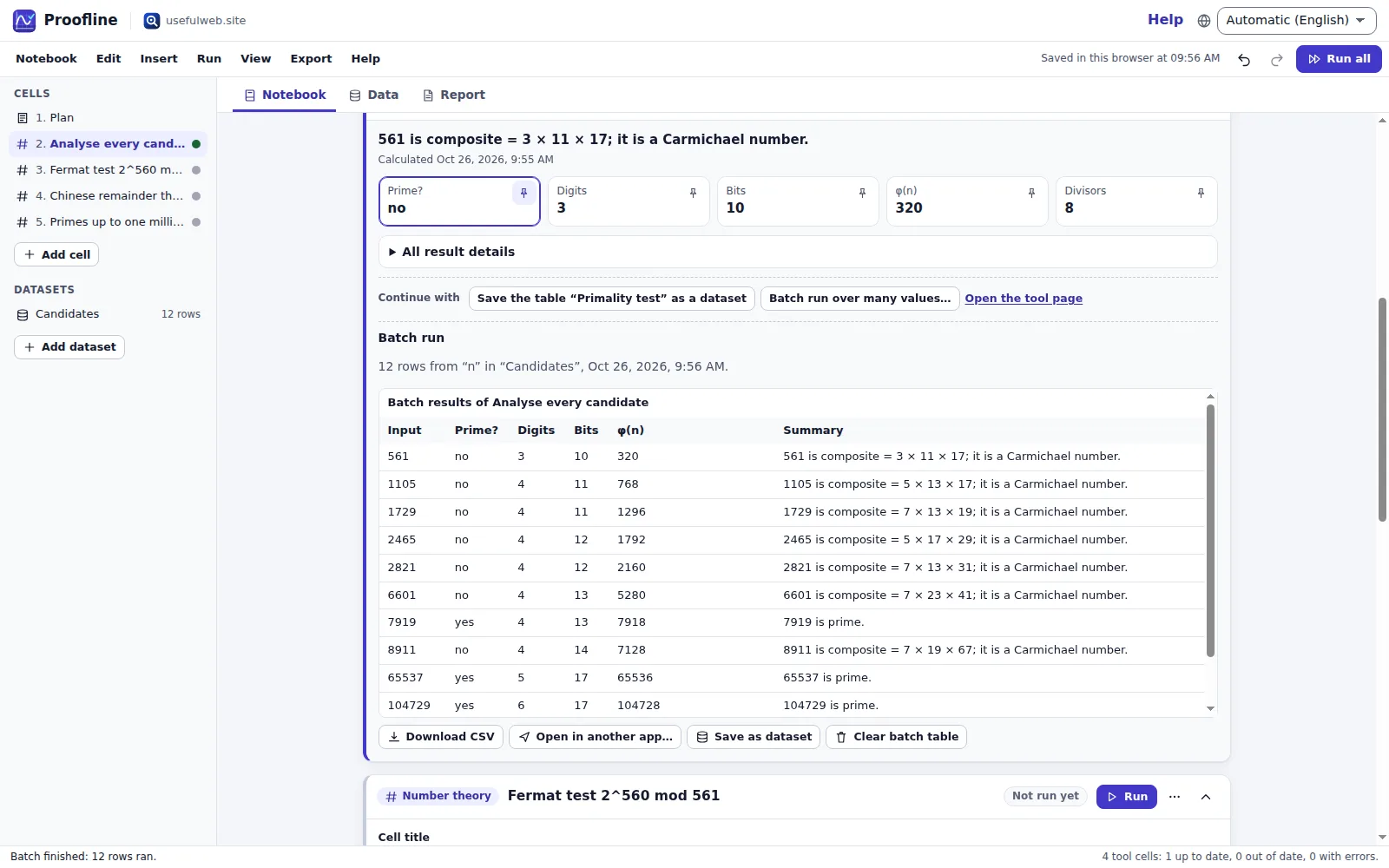
The batch table shows the input, the most important key figures and the tool's summary for each row. Download CSV, Save as dataset (to analyse the results further) or Open in another app…. Rows that fail keep their error message; the others still count.
Batch runs exist for cells with one main input: math workbench (command), equation solver (equations), number theory (n), floating point (value), erasure coding (lost shards), regex golf (regex) and keyboard heatmap (text).
Variants (scenario A/B)
In any tool cell choose Create variant B. The copy is inserted below and compares itself with the original. Change one input — for example the algorithm from Dijkstra to Bellman–Ford, or the float format from binary64 to binary32 — and run both cells.
Variant B now shows Compared with “…”: every key figure of A and B side by side with the difference B − A, and the list of inputs that differ. Compare with… in the cell menu links any two cells of the same kind. All comparisons also appear in the report.
Run history
Each successful run is remembered (the last 20) with its inputs and key figures. Run history… in the cell menu shows them newest first, charts a numeric key figure across runs and can Restore inputs of an earlier run. In the report, pinned findings show the change since the previous run (▲ / ▼).
Ready to try it?